
Hotkeys that always work
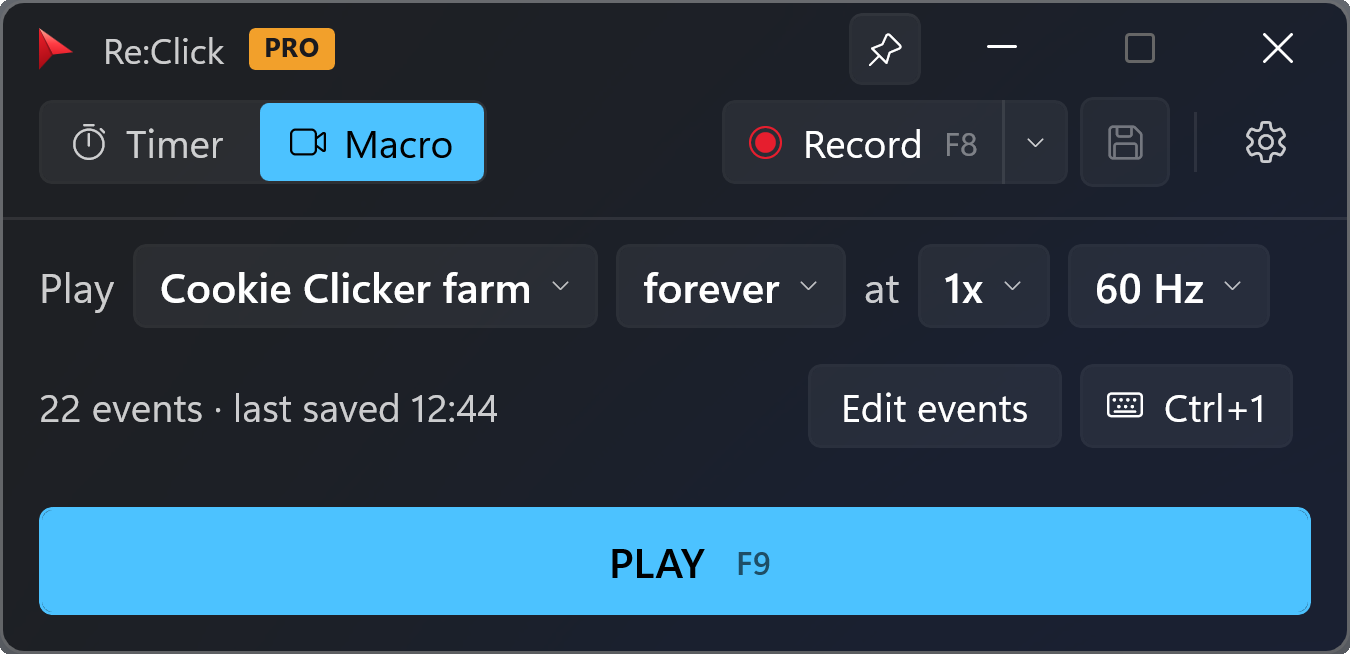
F7 starts and stops clicking, F8 records, F9 plays — from any window, even while the game has focus. Each macro can take a shortcut of its own.
Free on the Microsoft Store
Re:Click clicks, holds and types for you — or records what you did and plays it back. One small window, one line of plain English, and a key to start it. No menus to dig through.
Timer mode
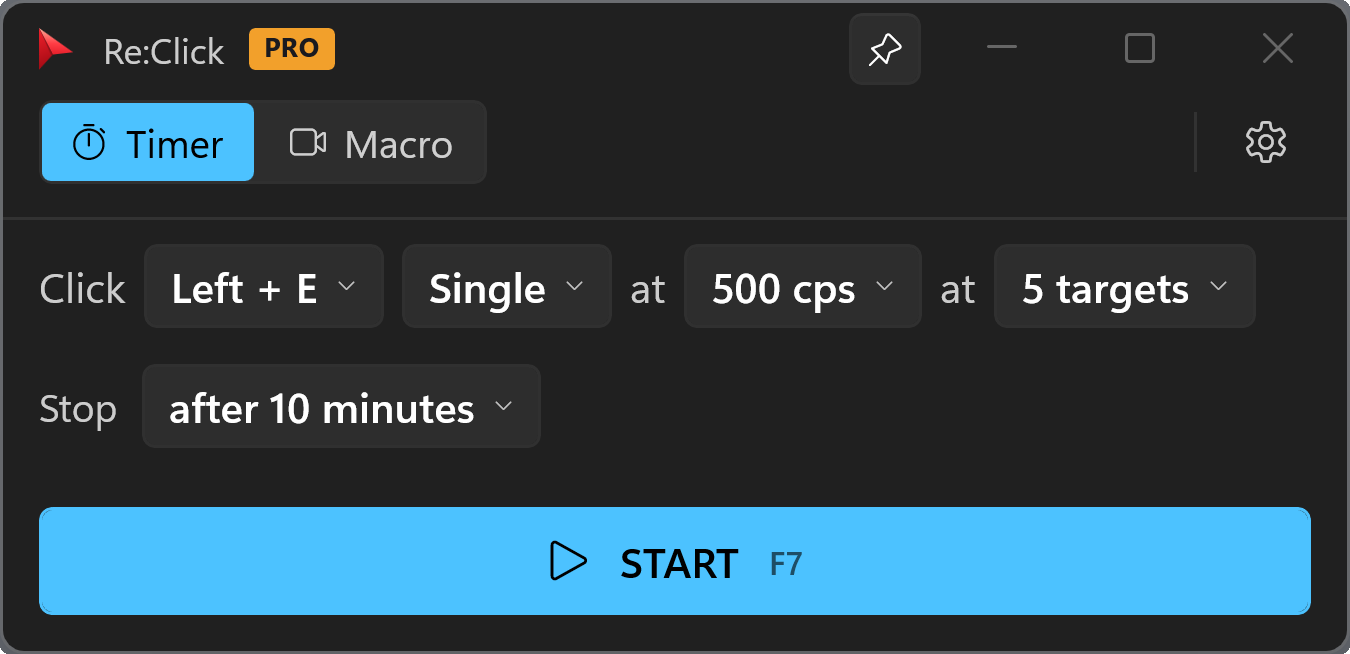
There is no settings page to go looking through. The whole run reads across one line, and tapping any value in it opens its editor right where you are looking.
Click Left + E1 Single2 at 500 cps3 at 3 targets4
Stop after 10 minutes5
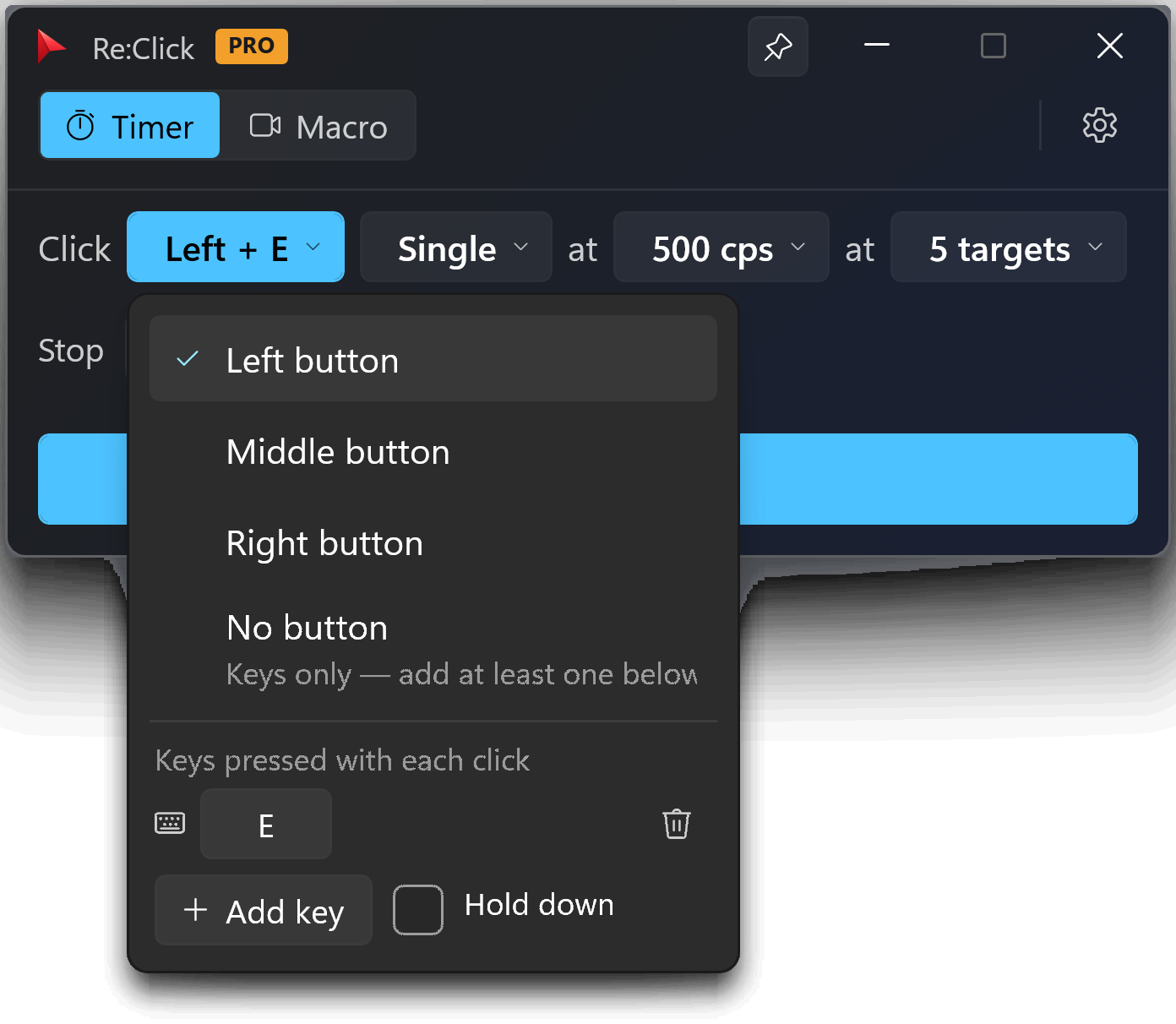
Left, middle or right — and, on Pro, any keys to press alongside it.
A single tap, a double click, or the button held down for as long as it runs.
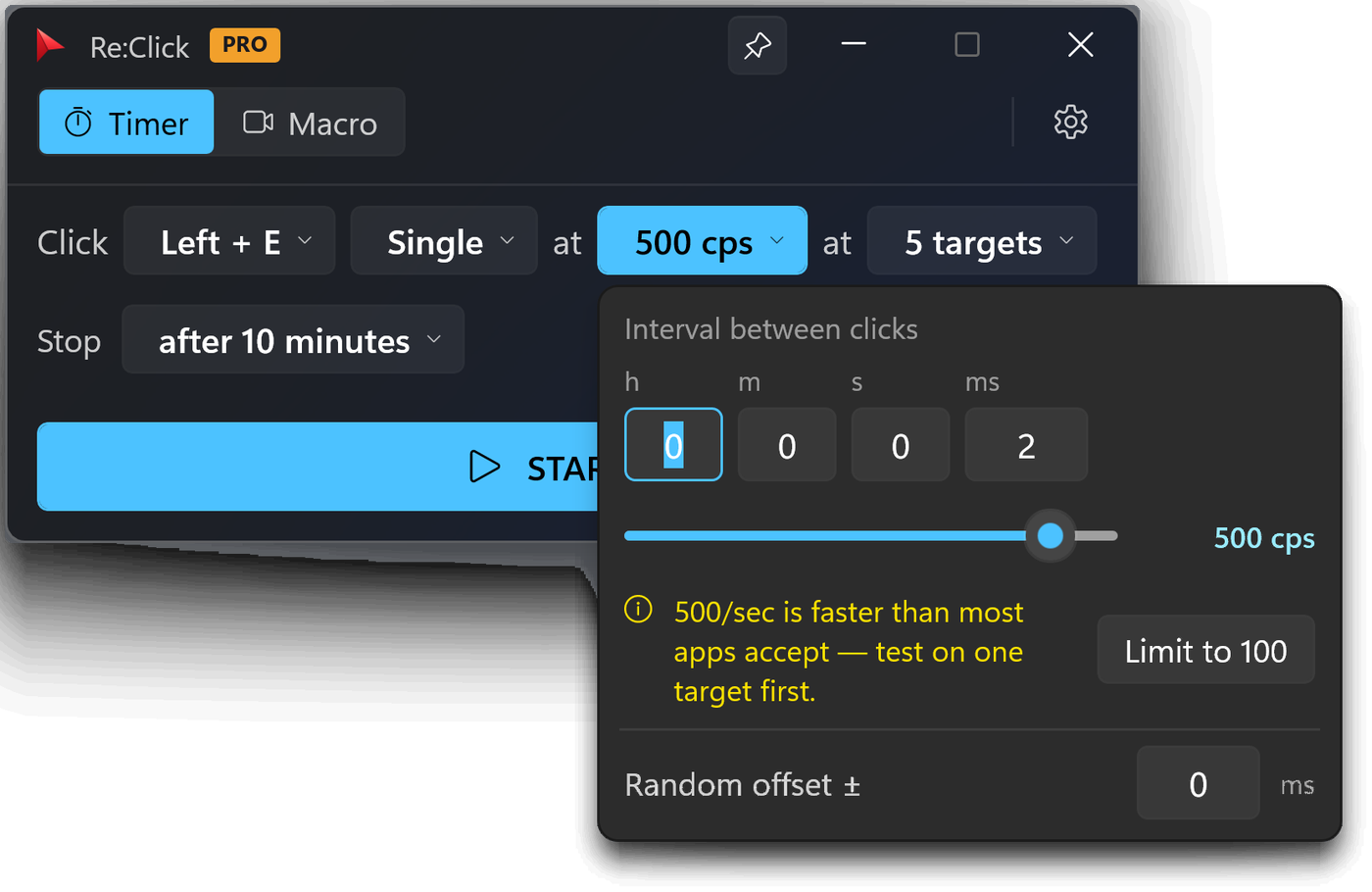
Hours, minutes, seconds and milliseconds — or drag the slider straight to a CPS figure, up to 1,000. Add a random offset so it is not metronomic.
Wherever the cursor happens to be, or around a list of fixed points you picked on screen.
After a number of clicks, after a length of time, or the moment you press F7 again.
Macro mode
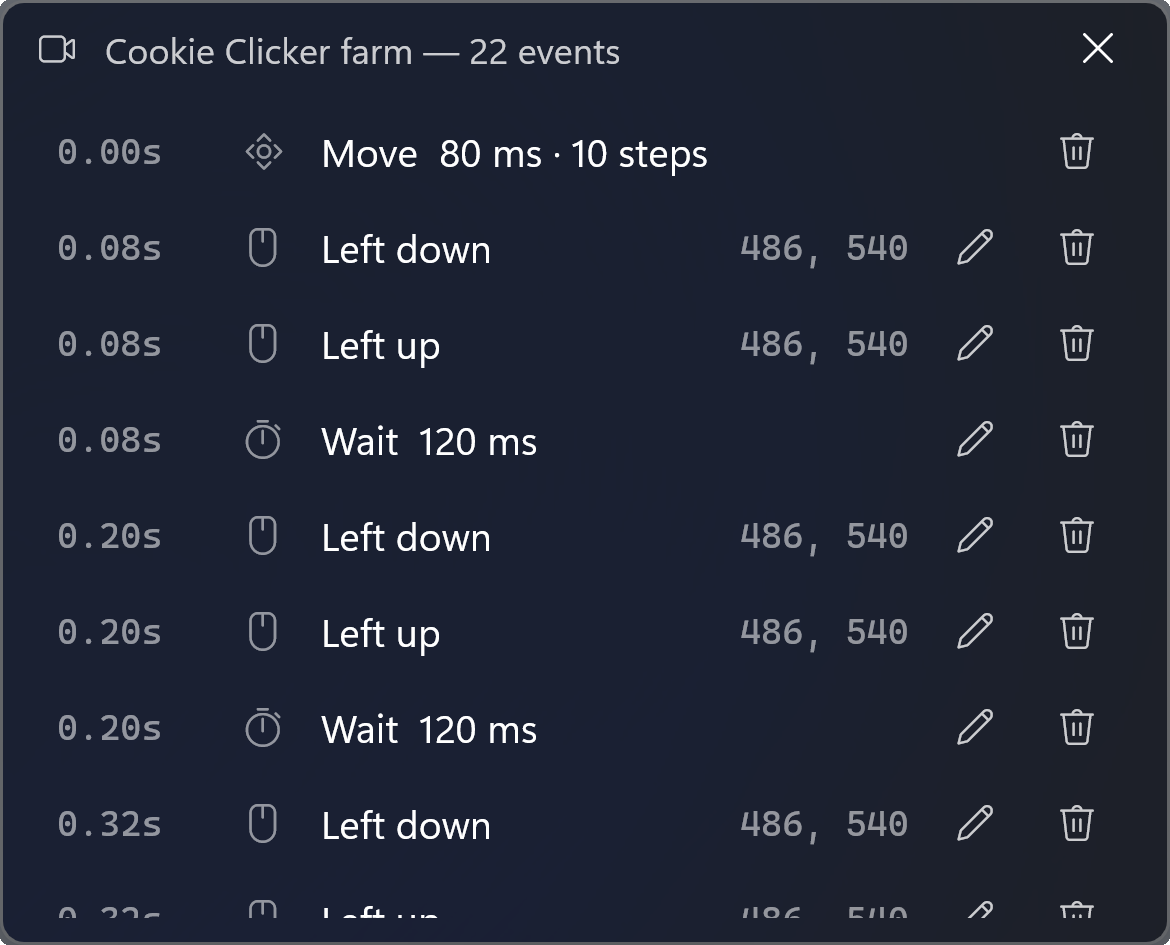
Press F8 and work normally. Re:Click keeps every click, key and movement, then plays the whole thing back exactly as you did it — or faster.
Everything else
The things a clicker has to get right, and the ones you only notice when they are missing.
F7 starts and stops clicking, F8 records, F9 plays — from any window, even while the game has focus. Each macro can take a shortcut of its own.
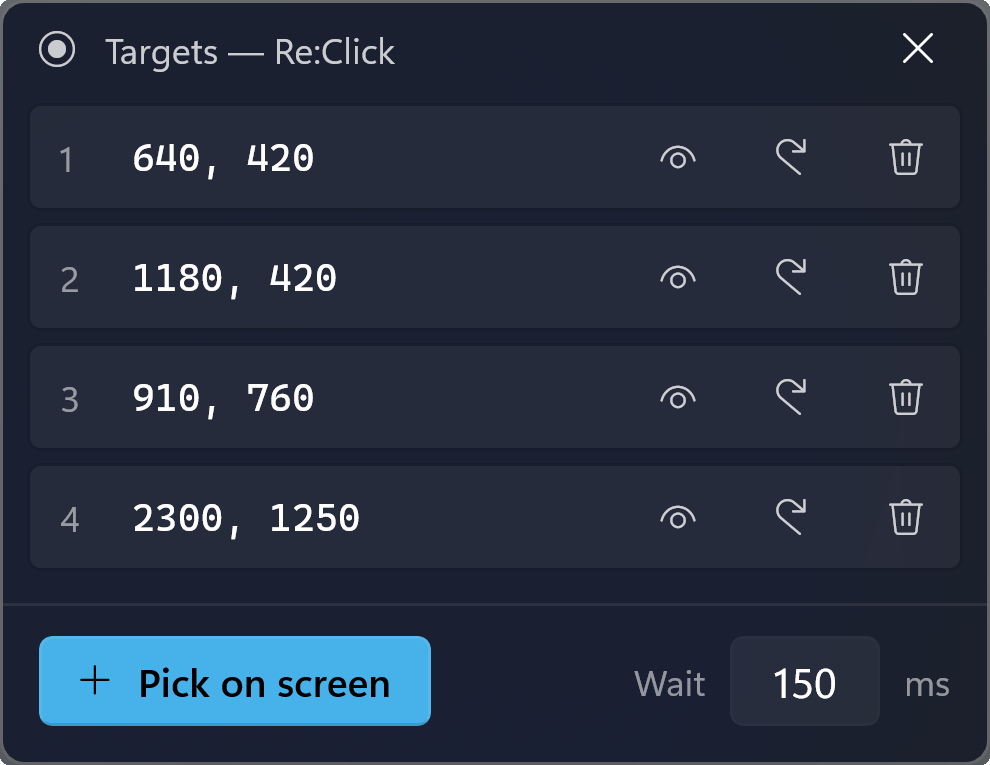
Point at a spot and Re:Click remembers it. Add several and it cycles through them in turn, highlighting the one it is about to hit.
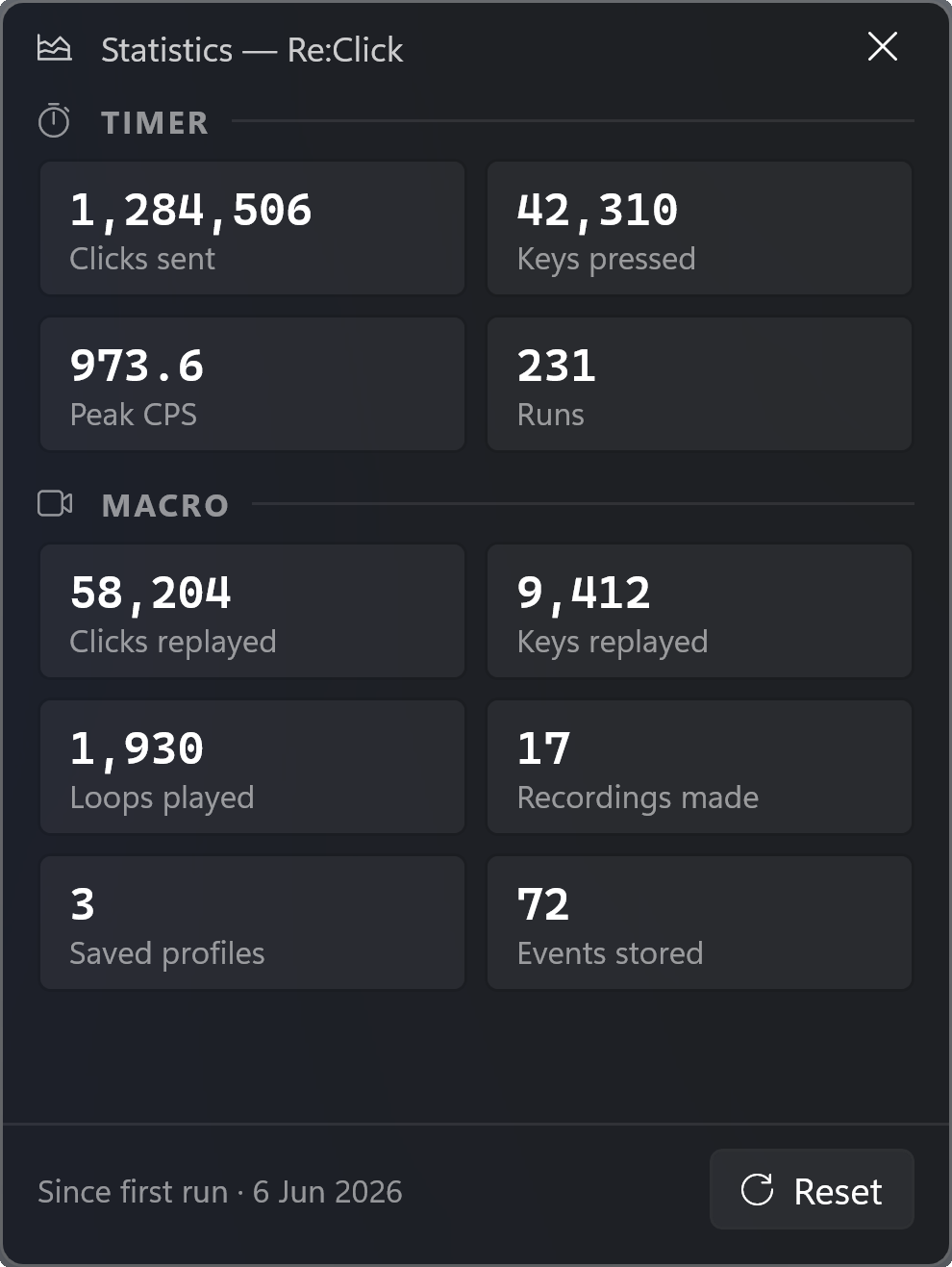
Clicks sent, keys pressed, peak CPS, loops played, recordings made — a lifetime tally in its own window, counting up while the engine runs.
Macros save as files you can move between machines or hand to someone else — and Re:Click still opens the profiles A.Click wrote.
Keep the window on top, or let it drop to the tray the moment clicking starts. One click on the tray icon brings it back.
After a number of clicks, after a length of time, or the moment you hit the key again. Esc unwinds a run without touching whatever is underneath.
Seven themes
Not just a recolour: each theme brings its own surfaces, its own text font and its own icon set. Windows 11 follows your system light or dark setting, and Rainbow's accent never stops moving — window border, buttons and tray icon all together.
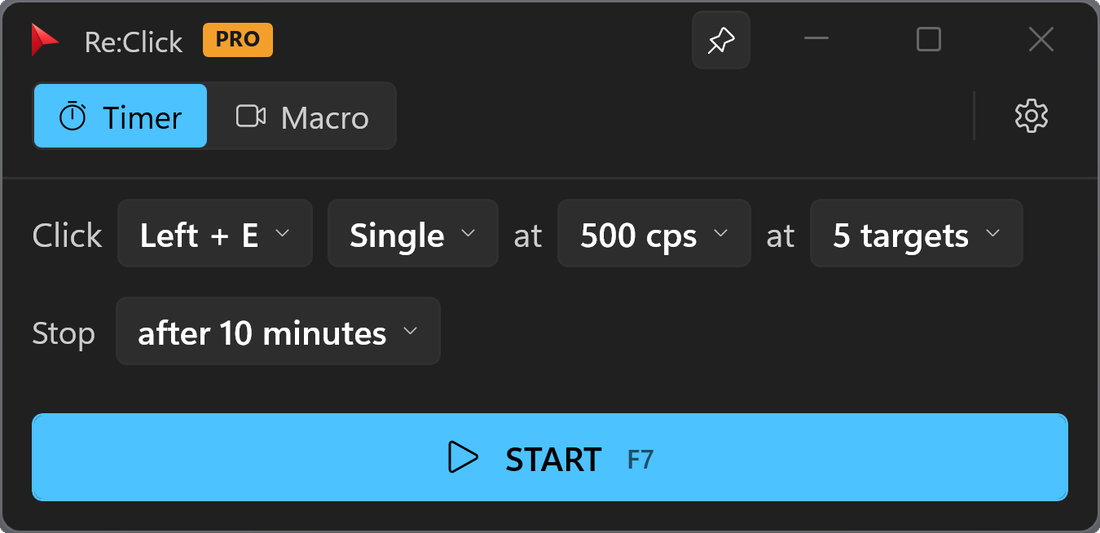
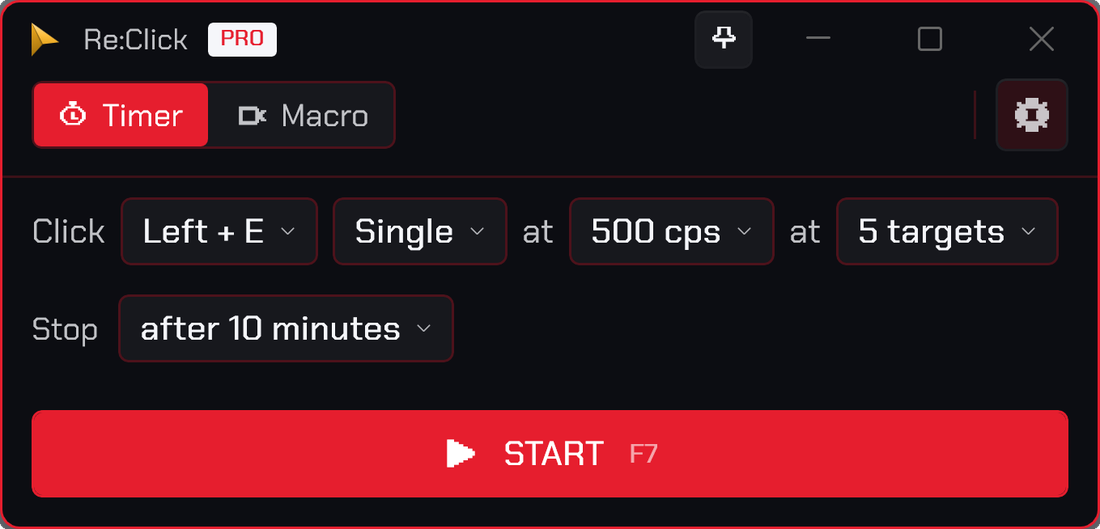
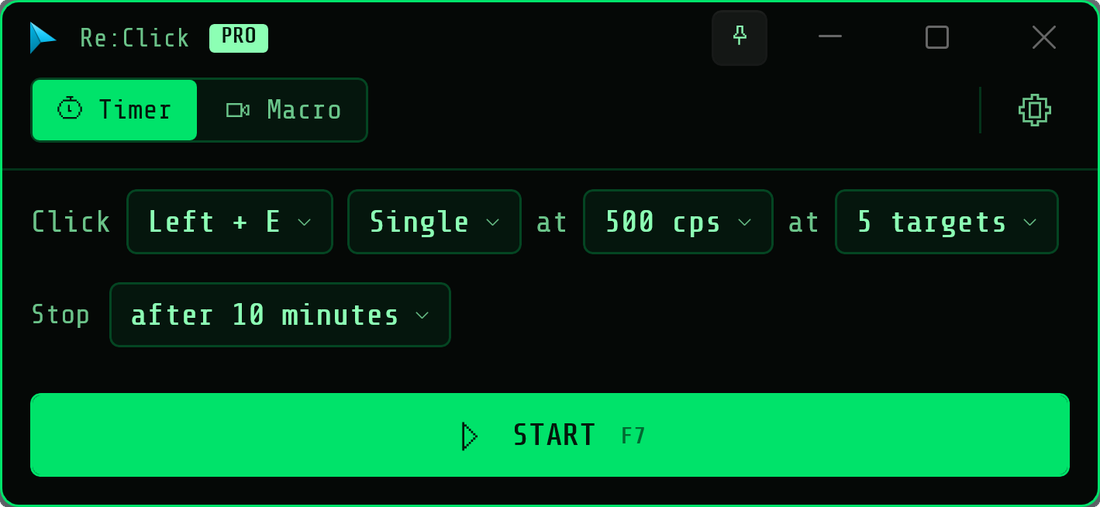
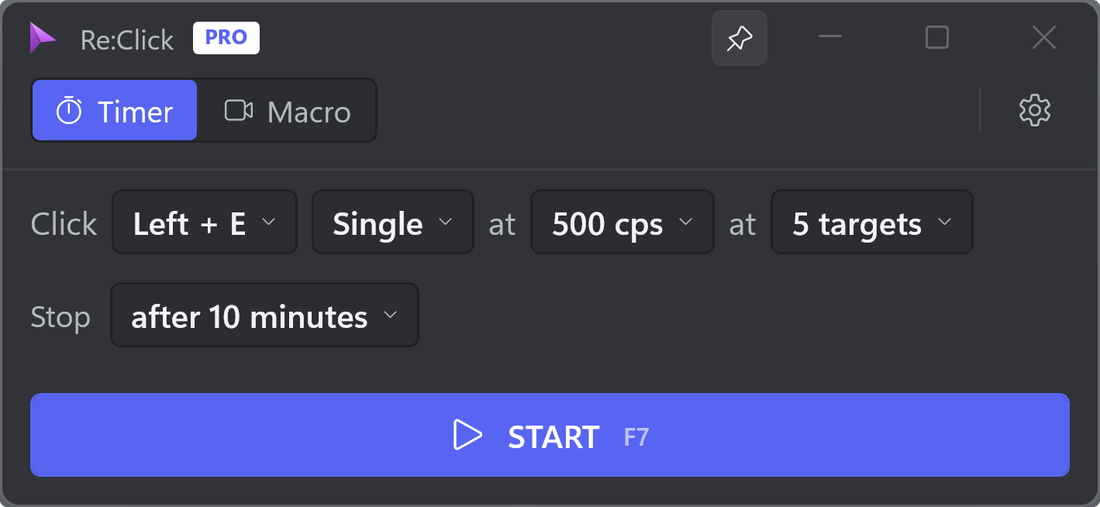
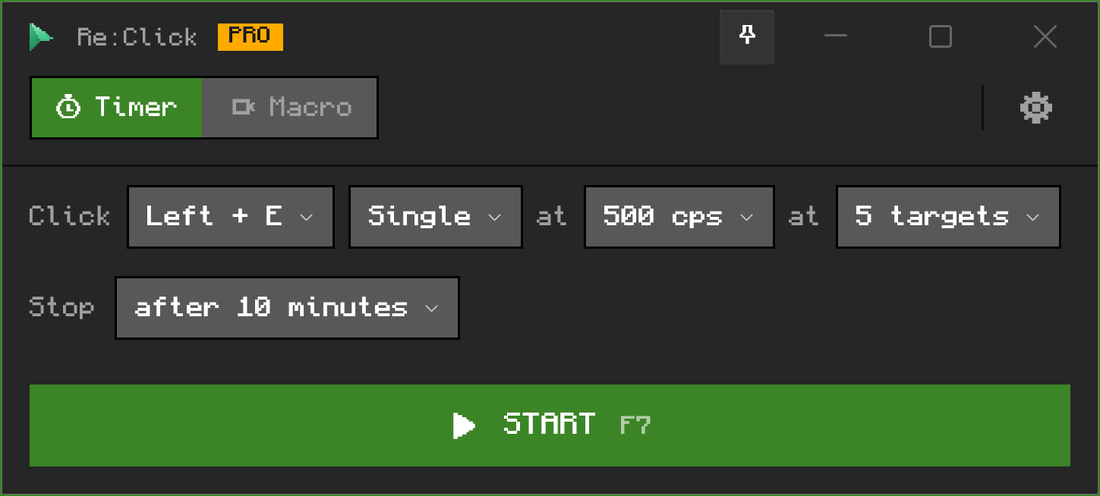
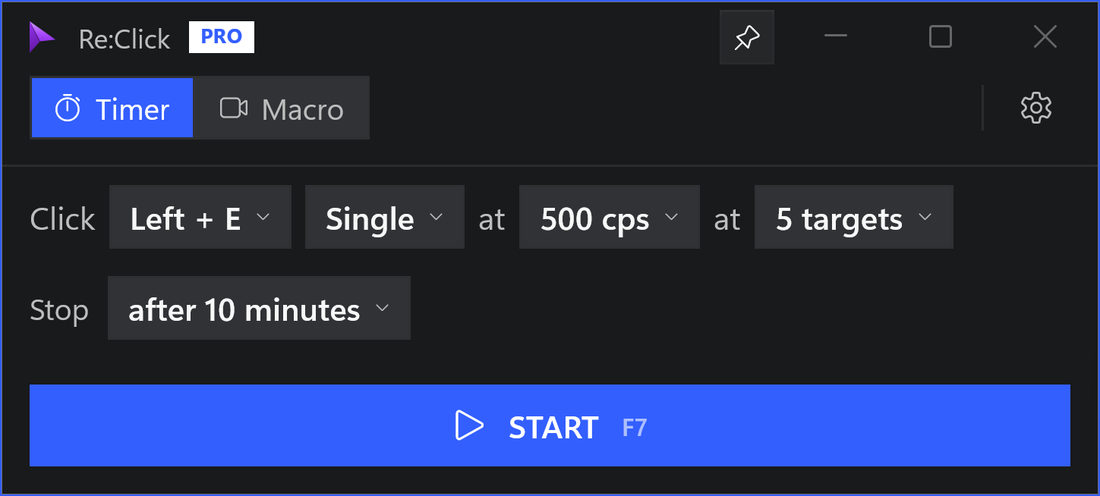
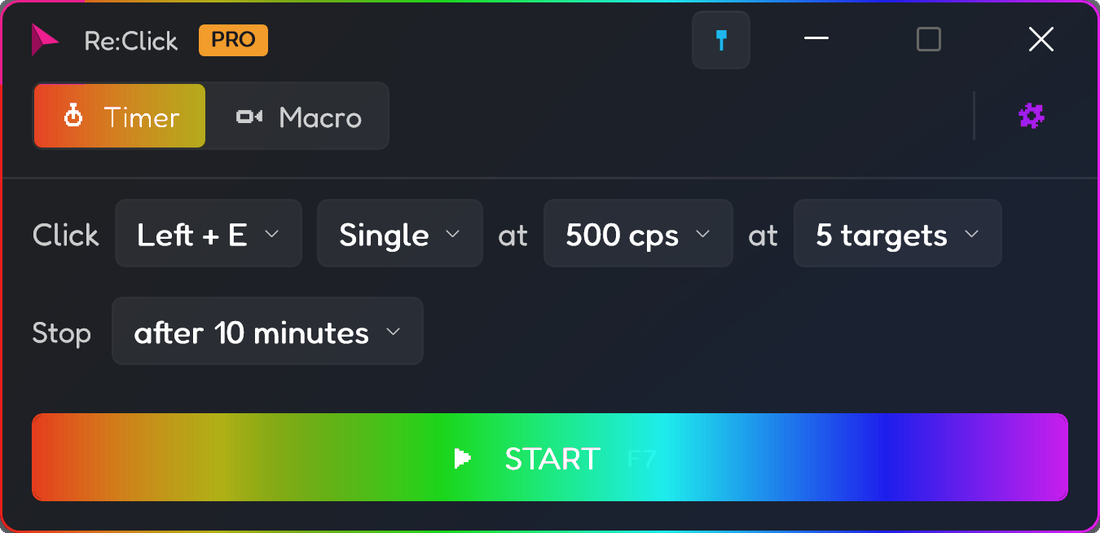
Every theme is free to try for a week. Pro keeps them.
Tool windows
The main window never grows and never scrolls. Anything that needs a list — your targets, the recorded events, your statistics, the settings — opens as its own small window beside it, placed so it never covers the one you are working in.
Pricing
The free tier is not a trial and does not expire. Pro removes the caps and is a one-time purchase if you want it that way.
No cost, no expiry
Not a trial. No ads, and no account to make.
One-time, or monthly
Bought inside the app — the Store sets the price for your region.
Questions
Yes. The free tier has no time limit, no ads and no account. It clicks at any rate, holds the button down, records and plays back — the caps are on how many fixed targets a run cycles through, how many loops one press plays, how long one recording runs and how long you keep the extra themes. Pro lifts all of them.
Windows 11 and Windows 10 version 1809 or later, on x64, x86 and ARM64. It installs from the Microsoft Store, so it updates itself and uninstalls cleanly.
Re:Click sends real Windows input, so it works in most applications and windowed games. Some online games run anti-cheat that blocks or detects synthetic input, and many forbid automation in their terms — check the rules of anything you play before you point a clicker at it. Re:Click does not hide what it is doing and makes no attempt to defeat anti-cheat.
The rate goes to 1,000 clicks per second. What lands is up to the application receiving them — many games process input once a frame, so past a point the extra clicks are simply dropped. Anything above 100 cps prompts you before it runs.
In the app's own data folder, which the Store removes when you uninstall. Use the export option in Settings to save them somewhere of your own, or to move them to another machine. Re:Click also opens profiles written by its predecessor, A.Click.
Only while you are recording a macro, and only into that macro, which stays on your machine. Re:Click has no analytics of its own and sends nothing you record anywhere.
Open Settings and use Restore purchases — it re-checks your Store licence. If it still will not budge, mail feedback@codeleven.app with the account you bought on and we will sort it out.
Install it, set one line, press F7 — that is the whole tutorial.